RenderDoc
Whether you want to debug your own custom GUI rendering, or you just want to see how Minecraft's rendering pipeline works, RenderDoc is extremely useful for analyzing frames. Some additional setup is required to get it working for Minecraft.
You can install it here.
GDK
Since GDK apps are just regular Win32 programs, you should be able to launch Minecraft directly with RenderDoc, and everything should work fine.
UWP
Prior to 1.21.120, Minecraft was a UWP app, which RenderDoc isn't designed for. You'll need some extra steps to get it working for the UWP build.
CheckNetIsolation
RenderDoc talks to the process it's attached to with a loopback network connection, which normally isn't allowed on UWP apps.
To make it work, run this PowerShell command in the background as an administrator:
CheckNetIsolation.exe LoopbackExempt -is -n="Microsoft.MinecraftUWP_8wekyb3d8bbwe"Capture Directory
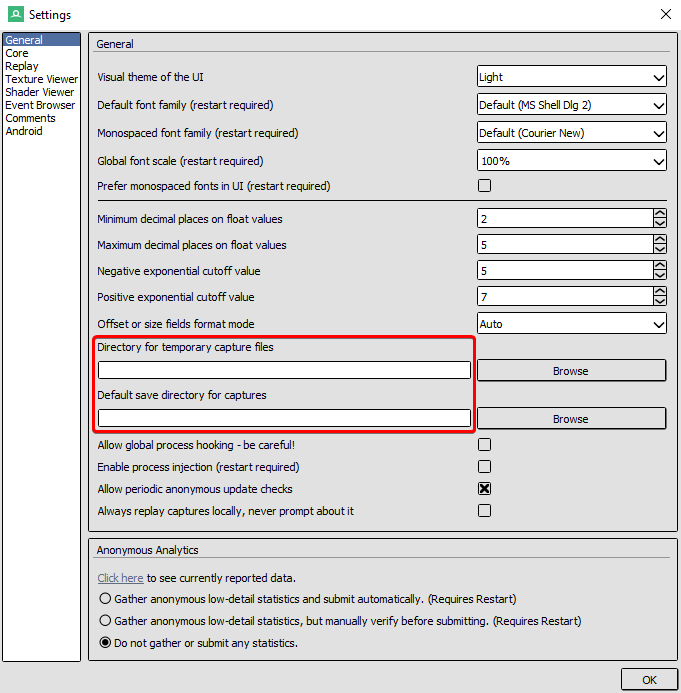
Under Tools > Settings > General, set both capture directories to locations under the game's RoamingState folder:
C:\Users\User\AppData\Local\Packages\Microsoft.MinecraftUWP_8wekyb3d8bbwe\RoamingState
DLL Permissions
By default, UWP won't be able to load renderdoc.dll (see UWP > DLL injection). The easiest way to fix this is by injecting it once with a UWP DLL injector, like Fate Injector. You can find the DLL in the installation directory of RenderDoc, eg. C:\Program Files\RenderDoc\renderdoc.dll.
Configuring the Game
RenderDoc needs to load before the graphics API is initialized. RenderDoc can't start UWP apps on its own, but there is a workaround for Minecraft.
Hidden in options.txt, there is a setting called load_renderdocdll. Set it to 1 to reload the renderer after Minecraft is done loading.
Actually Capturing
renderdoc.dll can't actually detect key presses in UWP apps, so you need to do it from the RenderDoc window.